> ## Documentation Index
> Fetch the complete documentation index at: https://docs.shootmail.app/llms.txt
> Use this file to discover all available pages before exploring further.
# Add Domain
> Add custom domain to send mails
Adding a domain you own is a crucial step to start sending mails and verify your identify with the email
clients so that your emails do not land in spam. Here is how you can add and verify your domain in 2 simple
steps:
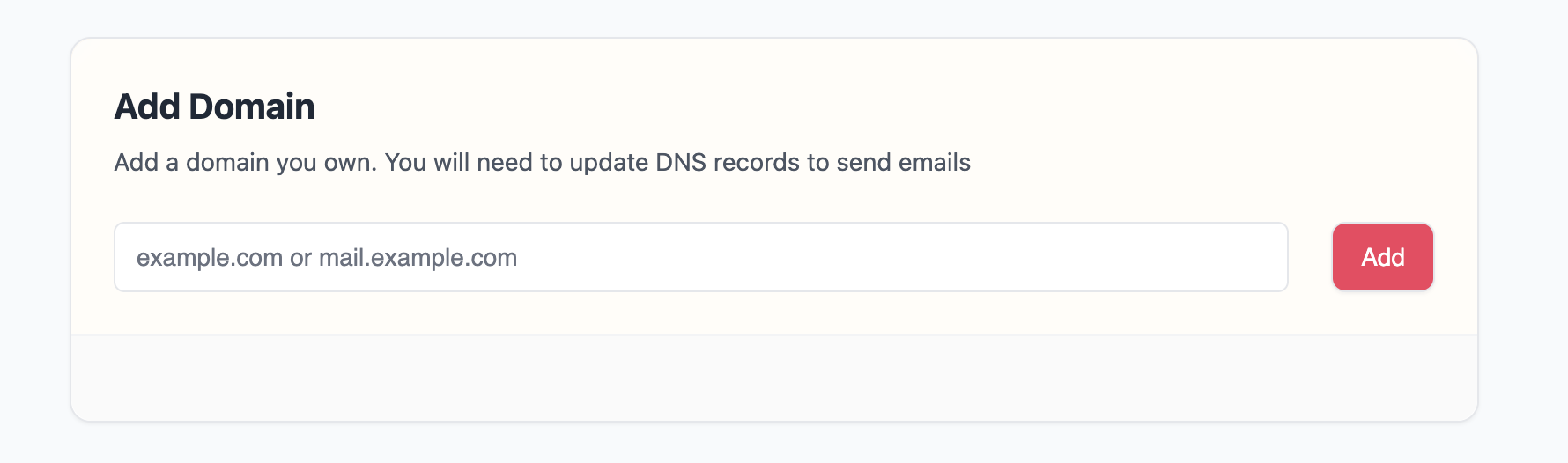
**1. Add Domain**: After you signup, go to Dashboard > Domains [Link](https://shootmail.app/settings/domains) and
enter the domain you want to add. We recommend using a sub domain for this purpose. For example, if your domain
is `cooldomain.com`, you can use `mail.cooldomain.com` to register as a mail sender.
 **2. Veirfy Domain**: As soon as you add domain, we display a list of DNS records that you need to add to your
DNS settings in your DNS provider's console. Popular DNS providers are GoDaddy, [Cloudflare](https://resend.com/docs/dashboard/domains/cloudflare), [Namecheap](https://resend.com/docs/dashboard/domains/namecheap).
**2. Veirfy Domain**: As soon as you add domain, we display a list of DNS records that you need to add to your
DNS settings in your DNS provider's console. Popular DNS providers are GoDaddy, [Cloudflare](https://resend.com/docs/dashboard/domains/cloudflare), [Namecheap](https://resend.com/docs/dashboard/domains/namecheap).
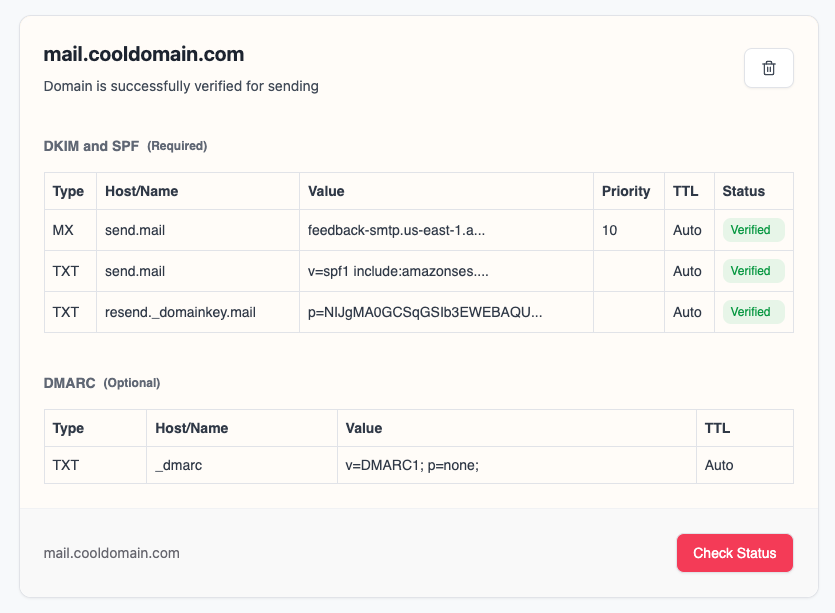 Add these DNS entries in your DNS provider and click on the `Check Status` button. It takes some time for the verification
of your records. Here is a list of statuses that you might see during the verification process:
* `Not Started`: you’ve added a domain to Resend, but you haven’t clicked on `Check Status` yet.
* `Pending`: We are still trying to verify the domain.
* `Verified`: Your domain is successfully verified for sending emails.
* `Failure`: We were unable to detect the DNS records within 72 hours.
Add these DNS entries in your DNS provider and click on the `Check Status` button. It takes some time for the verification
of your records. Here is a list of statuses that you might see during the verification process:
* `Not Started`: you’ve added a domain to Resend, but you haven’t clicked on `Check Status` yet.
* `Pending`: We are still trying to verify the domain.
* `Verified`: Your domain is successfully verified for sending emails.
* `Failure`: We were unable to detect the DNS records within 72 hours.